
Sr Technical Writer
Introduction
Managing SSL certificates manually is a common pain point for teams running production applications. If you’re currently using Let’s Encrypt with cron jobs on Droplets, you know the frustration of certificate expiration alerts, failed renewals, and the constant maintenance overhead.
In this tutorial you will learn how to automate SSL certificates and HTTPS renewals across DigitalOcean: fully managed SSL on Load Balancers and App Platform, with no manual certbot on servers.
You’ll also learn how to enable automatic HTTPS on DigitalOcean, how automated HTTPS certificate management works for both products, and when to choose managed SSL vs Let’s Encrypt on Droplets. By the end, you’ll understand how to eliminate certificate renewal failures and reduce operational overhead.
Why Automate SSL Certificates?
Manually renewing SSL/TLS certificates can result in:
- Expired server certificates, causing browser security warnings and potential downtime.
- Increased risk of service interruptions from missed renewals.
Automating SSL certificate renewals delivers these benefits:
- Automatic SSL and TLS certificate renewal (including X.509 certificates) ensures your certificates are always refreshed before they expire.
- No need to run certbot or schedule cron jobs, as cloud load balancer certificate management and Platform-as-a-Service SSL automation on DigitalOcean handle all provisioning and renewal tasks.
- Container platform certificate renewal and managed application SSL certificates are streamlined via cloud platform HTTPS automation, providing zero-configuration certificate pooling and auto-renewal.
This tutorial explains how to achieve SSL automation on both Load Balancers and App Platform with minimal effort.
Key Takeaways
- DigitalOcean Load Balancers provide Let’s Encrypt and HTTP/3 support that automatically provision and renew SSL certificates free of charge through Let’s Encrypt, and provide better performance for your users with HTTP/3. This eliminates the need for manual Let’s Encrypt configuration on individual Droplets.
Learn more in our load balancing and network load balancing resources.
- App Platform automatically provisions and renews SSL certificates when you add a custom domain, requiring zero configuration.
- The DIY approach with Let’s Encrypt and cron jobs works but requires ongoing maintenance; managed options offer automated HTTPS certificate management without certbot.
- HTTP to HTTPS redirects and HSTS headers are essential security hardening steps regardless of which SSL method you choose.
- Monitoring certificate expiration dates helps prevent service disruptions, even with automated renewals.
Prerequisites
Before you begin, ensure you have:
- A DigitalOcean account with a Droplet running Ubuntu 24.04 or later
- A domain name with DNS access (for configuring A records and DNS validation). If you need help setting up DNS, see our guide on How to Manage DNS Records
- Basic familiarity with Nginx configuration and Linux command line. For Nginx setup, refer to How To Install Nginx on Ubuntu
- SSH access to your Droplet. Learn how to connect to your Droplet with SSH
- A DigitalOcean API token (optional, for automation scripts)
How Managed SSL Works on DigitalOcean
Transport Layer Security (TLS) encrypts data between clients and servers; SSL certificates (technically TLS certificate / X.509 certificate) prove your server’s identity and enable encrypted connections. Let’s Encrypt issues free server certificates valid for 90 days, requiring renewal before expiration.
How does DigitalOcean handle certificate renewals when you use managed options?
DigitalOcean provisions certificates (via Let’s Encrypt), validates domain ownership, and renews them automatically before expiry, no certbot, no cron job is needed.
- For load balancer configuration, the load balancer listener (often an HTTPS listener) terminates TLS at the edge.
- For App Platform, the platform handles managed application SSL certificates when you add a custom domain. Both support multi-region deployment and, where applicable, global deployment.
DigitalOcean offers three approaches:
- DIY on Droplets: You manage Let’s Encrypt certificates with certbot and cron jobs (see How To Secure Nginx with Let’s Encrypt on Ubuntu and How To Secure Apache with Let’s Encrypt on Ubuntu).
- Load Balancer managed SSL: Cloud load balancer certificate management. DigitalOcean handles provisioning and renewal at the load balancer level (load balancer SSL).
- App Platform: Platform-as-a-Service SSL automation and container platform certificate renewal with zero configuration (App Platform SSL).
The following sections focus on automating SSL on DigitalOcean Load Balancers and automating SSL on App Platform, with fully managed renewal and no manual certbot.
Setting Up SSL with Let’s Encrypt on a Droplet
This section demonstrates the traditional DIY approach using Let’s Encrypt and certbot. While this method works, it requires more maintenance than DigitalOcean managed solutions like Load balancers and App Platform.
Installing Certbot
First, update your system and install certbot:
sudo apt update
sudo apt install certbot python3-certbot-nginx -y
The python3-certbot-nginx package includes the Nginx plugin, which automatically configures Nginx for SSL. If you haven’t installed Nginx yet, see How To Install Nginx on Ubuntu first.
Obtaining Your First Certificate
Before requesting a certificate, ensure your domain points to your Droplet’s IP address. Create an A record in your DNS settings pointing your domain to the Droplet’s public IP. If you’re using DigitalOcean’s nameservers, see our guide on How to Manage DNS Records.
Request a certificate for your domain:
sudo certbot --nginx -d yourdomain.com -d www.yourdomain.com
Certbot will:
- Validate domain ownership via HTTP challenge
- Generate the certificate
- Modify your Nginx configuration to use SSL
- Set up automatic renewal
After successful certificate generation, certbot creates a systemd timer that attempts renewal twice daily. However, you should verify this is working correctly.
Verifying Automatic Renewal
Test the renewal process with a dry run:
sudo certbot renew --dry-run
If this succeeds, your automatic renewal is configured correctly. Certbot’s systemd timer runs certbot renew twice daily, but only renews certificates that are within 30 days of expiration.
You can check the timer status:
sudo systemctl status certbot.timer
Common Issues with DIY Certificate Management
Several problems can occur with manual certificate management:
- Port 80 blocked: Let’s Encrypt requires port 80 for HTTP validation. You will need to ensure that your firewall allows HTTP traffic. Learn about configuring firewalls on Ubuntu
- DNS propagation delays: If your domain DNS hasn’t propagated, certificate requests will fail. Check DNS propagation using tools like
digor online DNS checkers - Multiple renewal attempts: If you have multiple servers behind a load balancer, each server needs its own certificate, complicating renewal. You should consider using DigitalOcean Load Balancers with managed certificates instead.
- Certificate sync: After renewal, you must reload Nginx and potentially sync certificates across multiple servers. For more on Nginx management, see How To Manage Nginx Configuration Files
Automating SSL on DigitalOcean Load Balancers
DigitalOcean Load Balancers simplify SSL certificate automation by handling SSL termination and automatic renewal.
This approach is ideal when you have multiple backend servers or want to offload SSL processing from your application servers. Load balancers distribute traffic across multiple Droplets and provide high availability; see network load balancing for more context.
Enabling Managed SSL on a Load Balancer
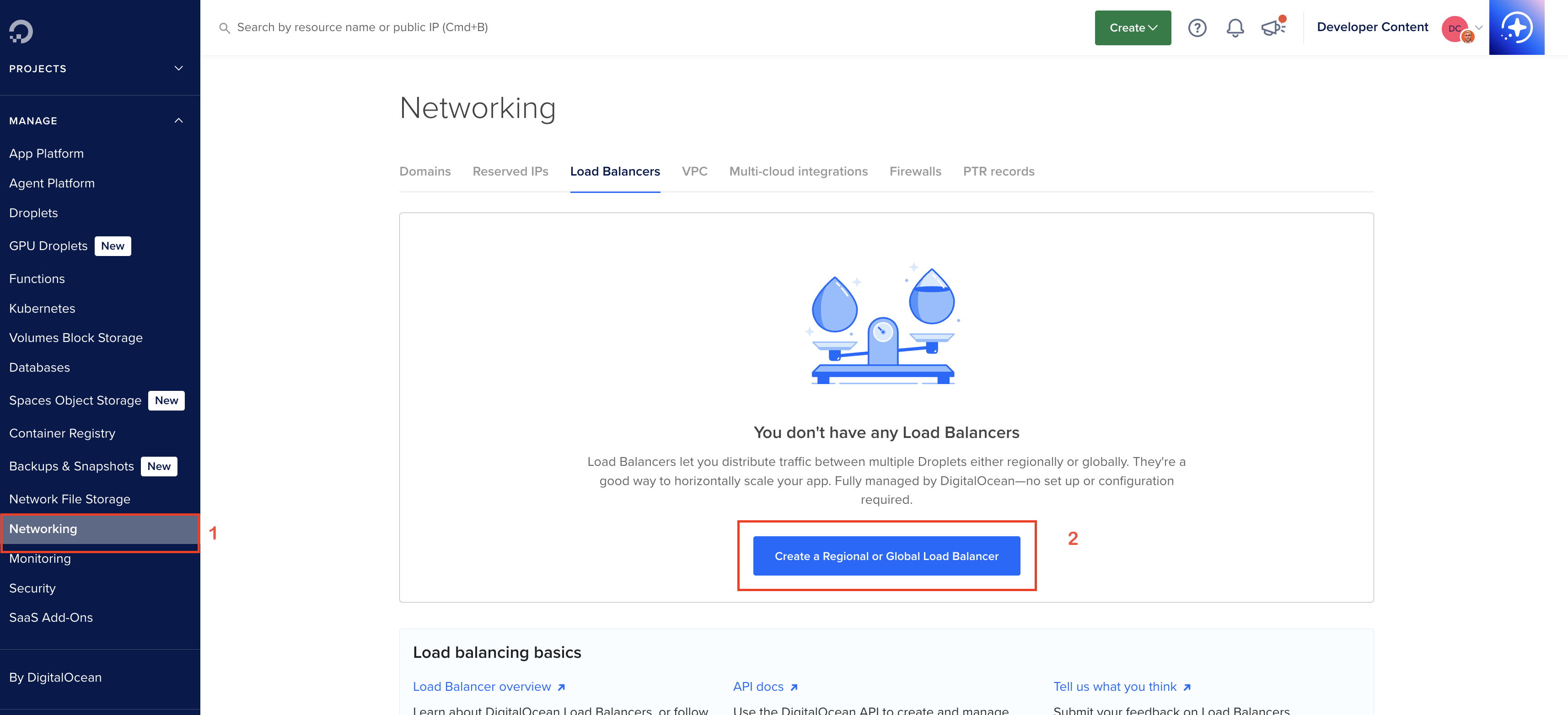
Navigate to the DigitalOcean Control Panel and create a new Load Balancer. For detailed setup instructions, see How to Create a Regional Load Balancer:
-
Go to Networking > Load Balancers > Create Load Balancer
-
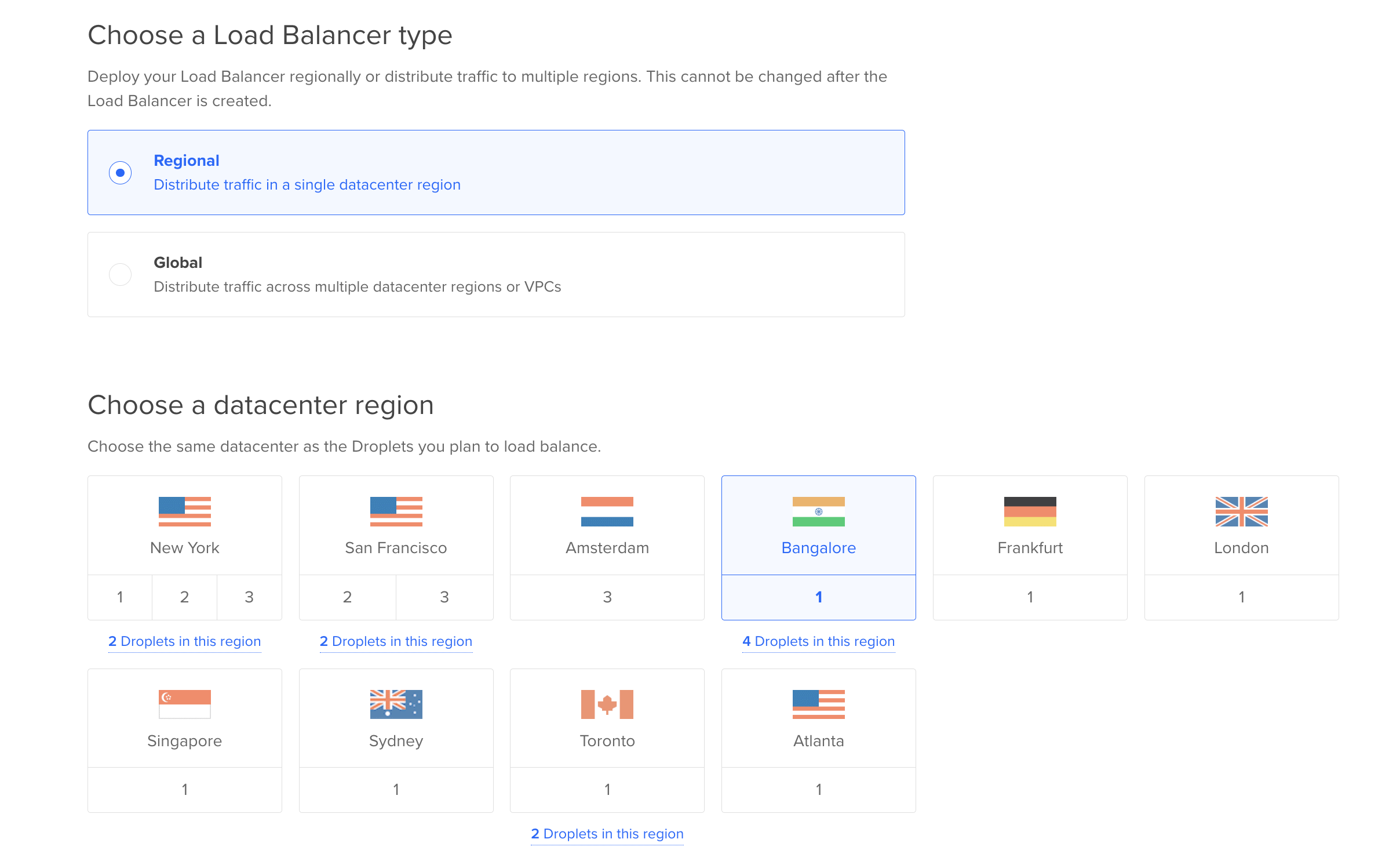
Choose the region you want to deploy your load balancer to(Choose the same datacenter as the Droplets you plan to load balance).
-
Select your Droplet pool (or anytime after the Load Balancer is created.). Learn about adding Droplets to a load balancer
-
Add forwarding rules: Forwarding rules define how traffic is routed from the load balancer to its backend Droplets. You need at least one rule.
The default route is HTTP port 80 on the load balancer to HTTP port 80 on the backend Droplets. You can create new rules during creation with the New Rule drop-down. After creation, you can modify a load balancer’s rules at any time on its Settings page.
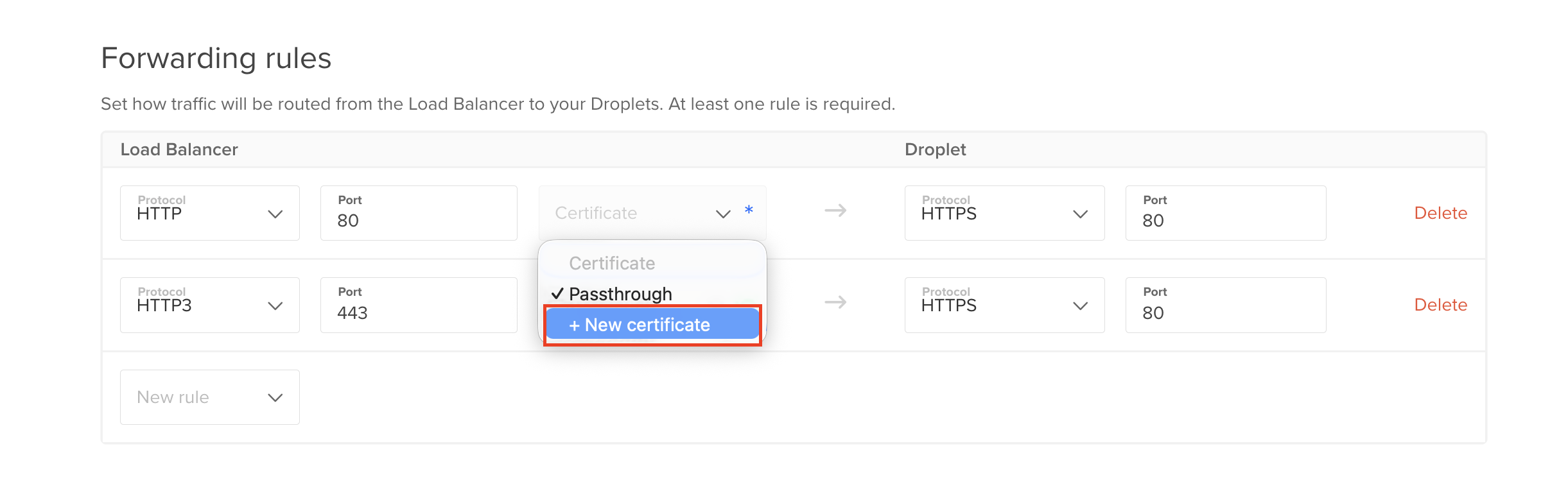
You have the option to create a forwarding rule that requires a Let’s Encrypt certificate or you can bring your own certificate. If you bring your own certificate, you need to upload the certificate and private key files to DigitalOcean.
If you manage your domain with DigitalOcean DNS, you can choose the Let’s Encrypt option to create a new, fully-managed SSL certificate. DigitalOcean will create and automatically renew this certificate for you.
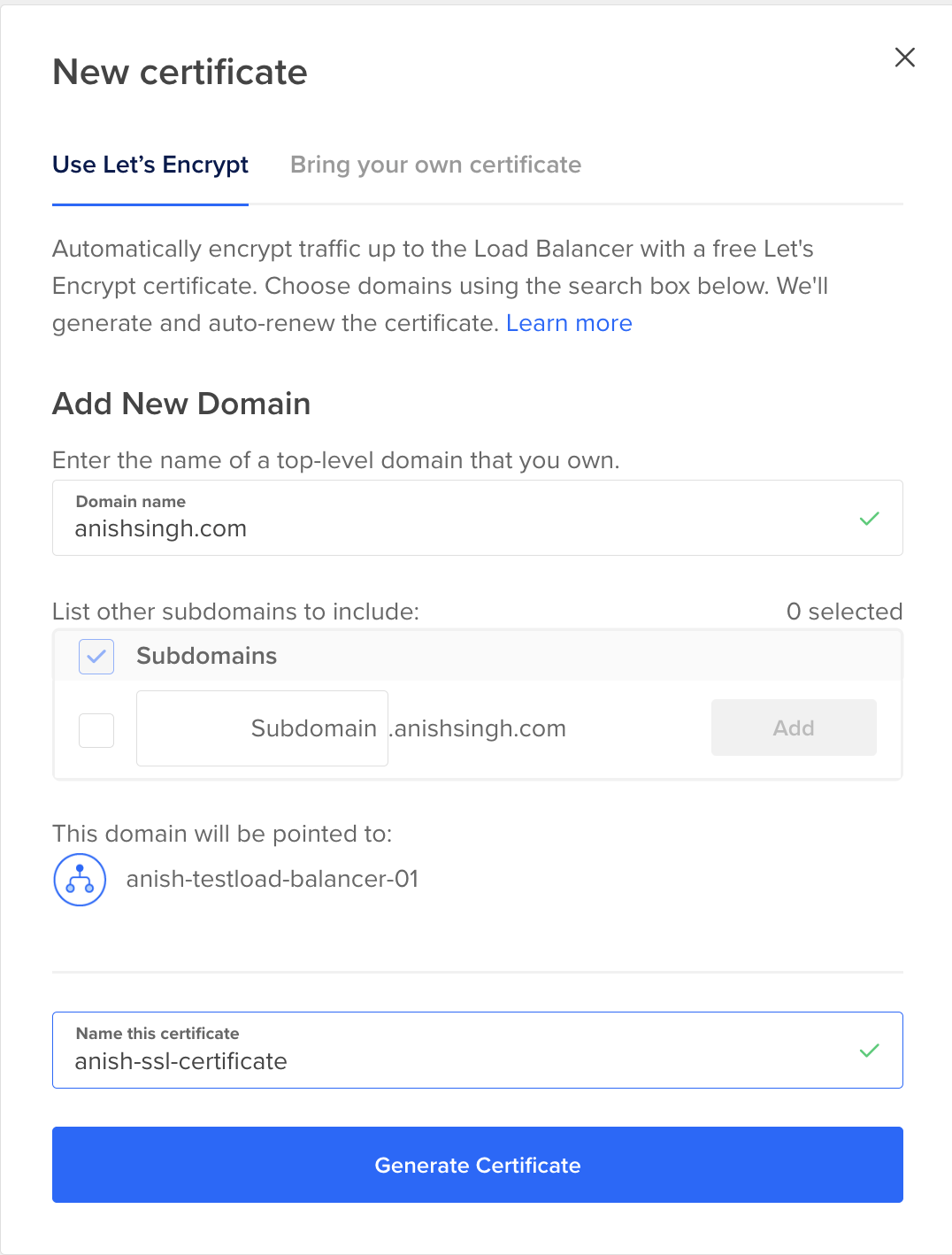
The Create DNS records for all the new Let’s Encrypt certificates box is checked by default. If you want to manage your own DNS records for your Let’S Encrypt certificate, uncheck the box to opt out of creating any records when creating the forwarding rule.
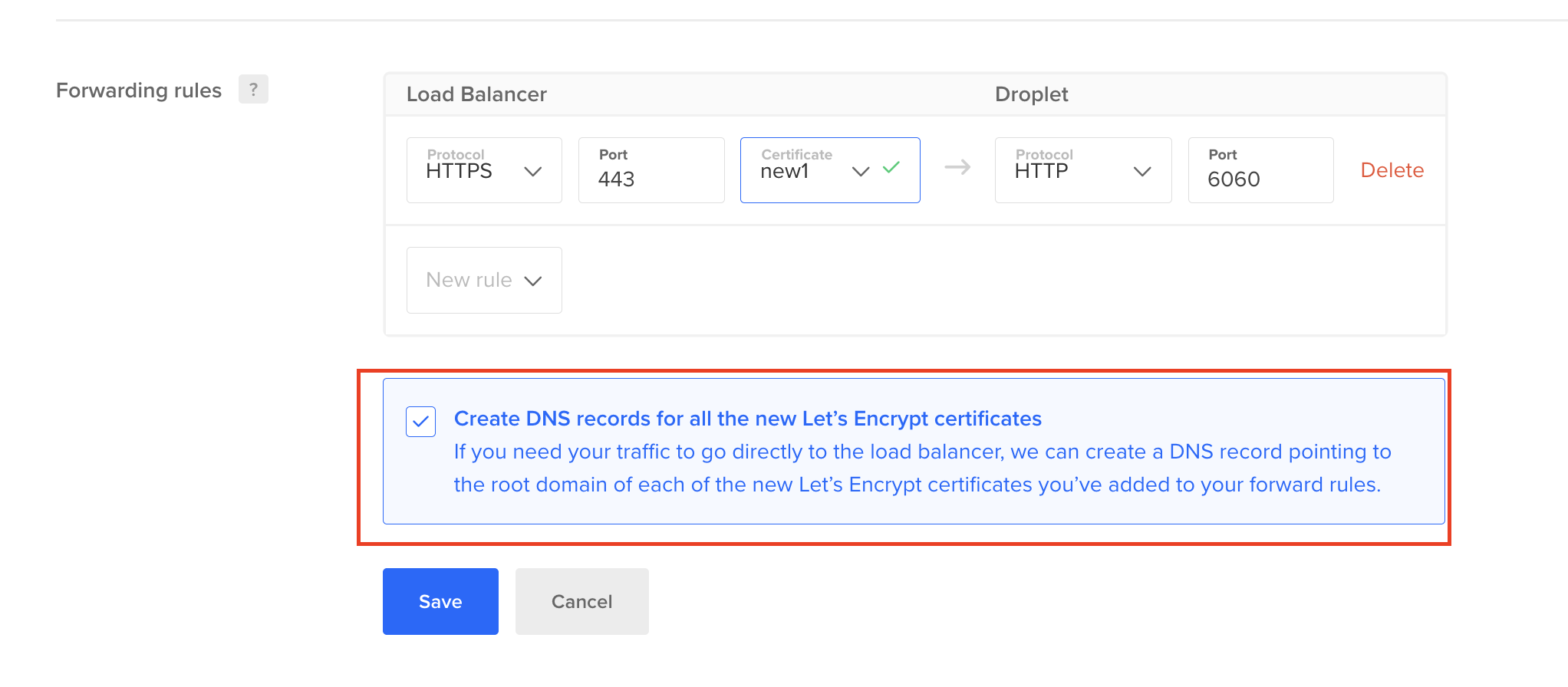
You can update this selection when adding or updating forwarding rules at a later time. However, the updated selection applies only to the new rules going forward, existing DNS records are not updated.
You can refer to this documentation on Adding an SSL certificate to a load balancer for more details.
- Force SSL Traffic: If you would like to force visitors to connect over HTTPS for data integrity and security purposes, you can optionally redirect HTTP traffic to HTTPS. Any insecure connections made to the load balancer are redirected to use the SSL certificate you loaded.
Under Advanced settings, choose Redirect HTTP to HTTPS.
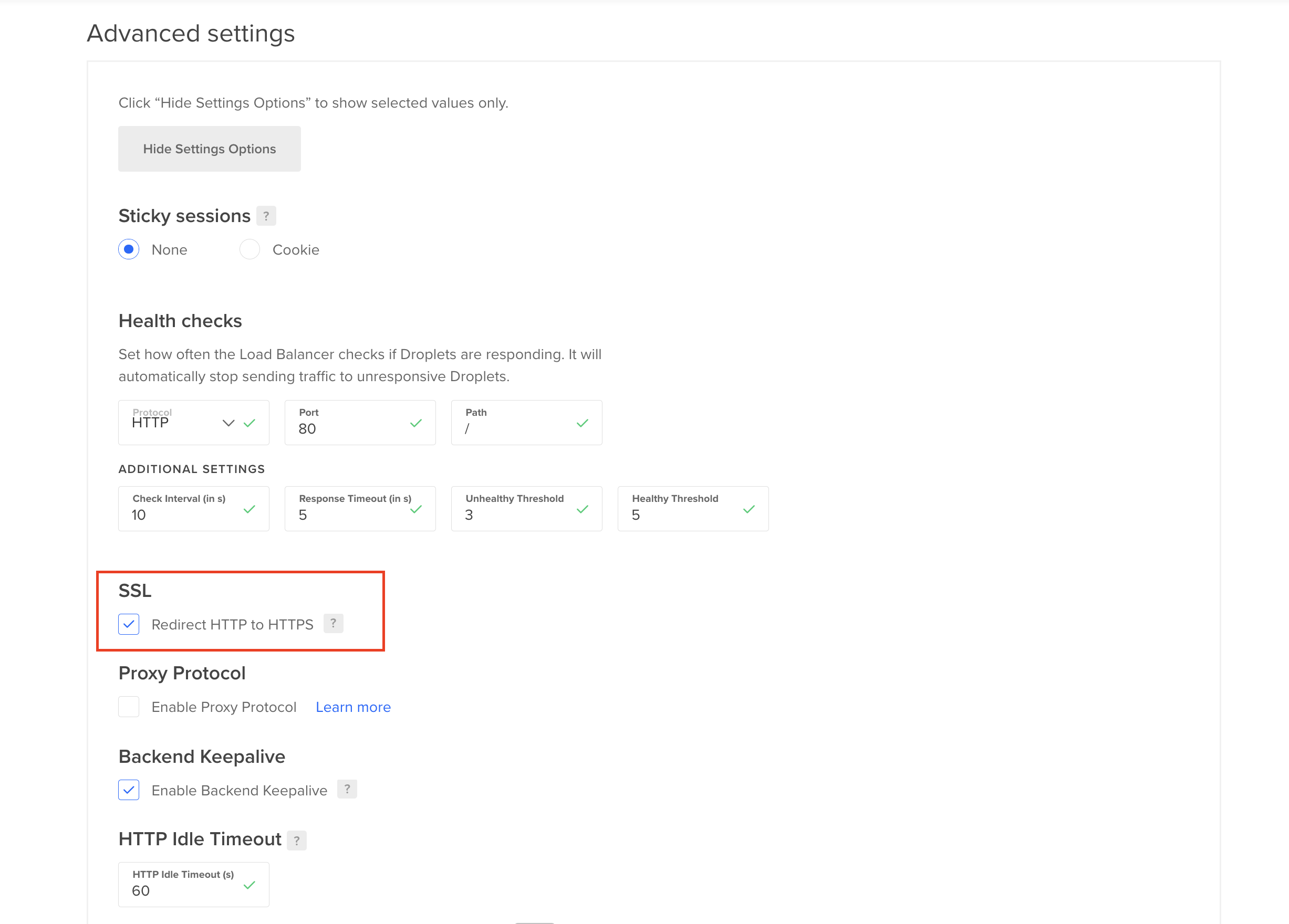
DigitalOcean automatically:
- Validates domain ownership via DNS
- Provisions the SSL certificate
- Configures automatic renewal
- Sets up the load balancer to use the certificate
The load balancer handles SSL decryption and forwards unencrypted traffic to your backend Droplets over the private network. This reduces CPU load on your application servers and simplifies cloud load balancer certificate management. Certificates live only on the load balancer, not each backend server.
DigitalOcean renews managed SSL certificates on the load balancer automatically before expiration. No cron jobs or certbot are required; renewal is fully managed.
For detailed configuration steps, see the DigitalOcean documentation on SSL termination.
Note: If you need end-to-end encryption (for compliance or security requirements), use SSL passthrough instead of termination.
SSL passthrough requires managing certificates on your backend servers, but provides stronger security for sensitive applications. See the SSL passthrough documentation for setup details.
Automating SSL on App Platform
DigitalOcean App Platform provides the simplest automated HTTPS certificate management for managed application SSL certificates. When you add a custom domain, DigitalOcean automatically provisions and renews SSL certificates with zero configuration. This includes Platform-as-a-Service SSL automation and container platform certificate renewal with no certbot or manual steps.
Enabling HTTPS on App Platform
To use App Platform’s automatic HTTPS and cloud platform HTTPS automation, first deploy your application. See How to Deploy a Static Site to App Platform or How to Deploy a Containerized Application to App Platform for deployment guides:
Once you have deployed your application to App Platform, go to Networking tab > Domains.
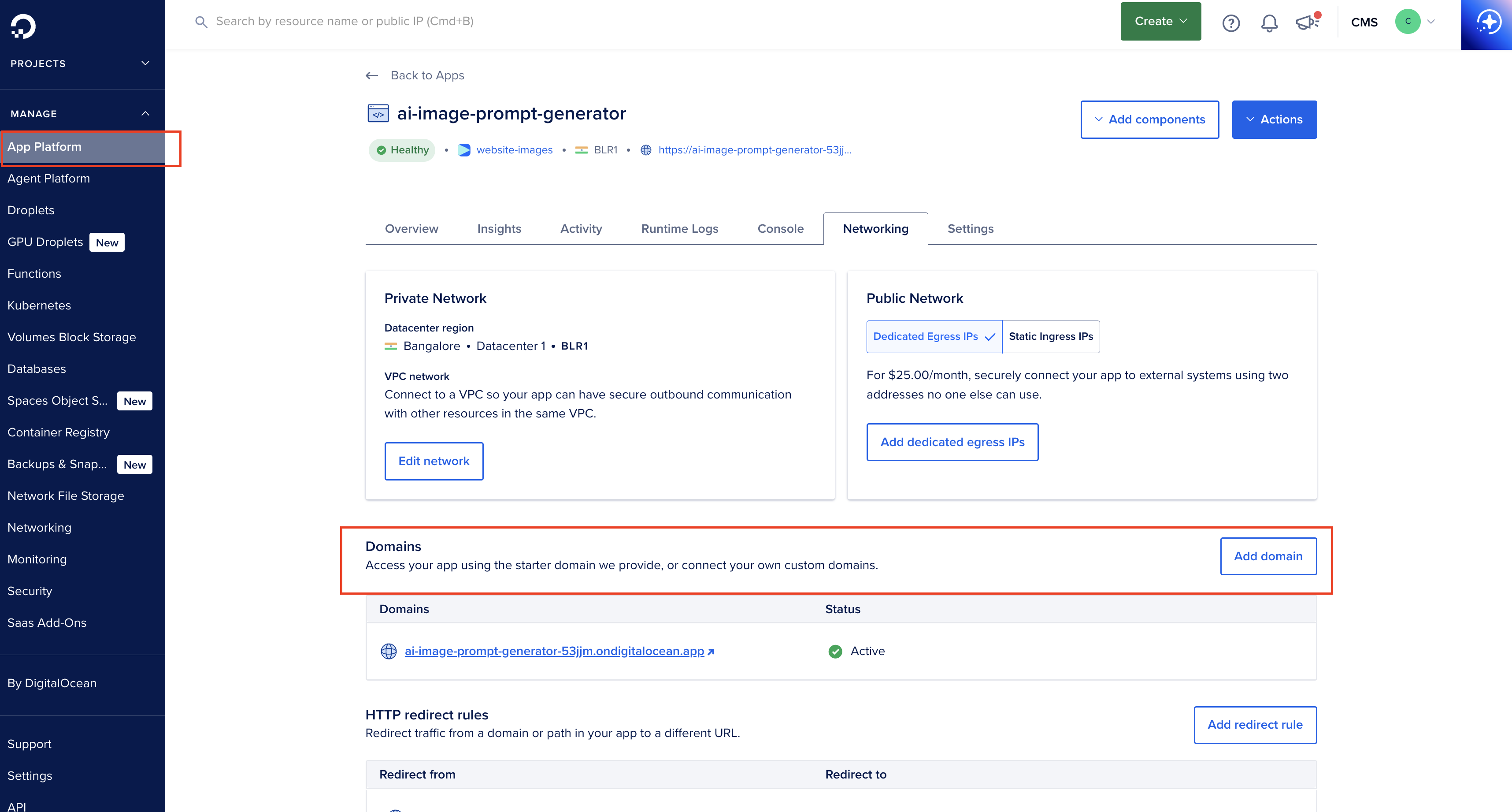
Here are the steps on how to set up a custom domain and SSL with the DigitalOcean App Platform:
1. Add a Custom Domain to Your App
- Navigate to the DigitalOcean control panel.
- Go to your app’s dashboard within the App Platform.
- Under the Domains section, click Add Domain.
- Enter your custom domain and click “Add”.
2. Update DNS Records
- Go to your domain registrar (in your case, Namecheap) and update the DNS records to point to the DigitalOcean App Platform. DigitalOcean should provide you with the necessary CNAME or A records.
- It might take some time for DNS propagation, so be patient.
Note: It can take a few minutes for SSL to be active after DNS propagation. If you don’t see HTTPS immediately, check your DNS settings, refresh the DigitalOcean App Platform dashboard, and wait for the changes to propagate.
3. Automatic SSL Certificate Provisioning
- Once the DNS records are correctly set up and propagated, DigitalOcean’s App Platform will automatically provision an SSL certificate for your domain using Let’s Encrypt.
- After this step, your app should be accessible via
https://followed by your custom domain. - You don’t need to create CSR files or manually handle certificates because DigitalOcean automates this for you.
Once your custom domain is properly configured on DigitalOcean’s App Platform, SSL/TLS is automatically provisioned via Let’s Encrypt. This means you don’t have to manually acquire or install an SSL certificate and DigitalOcean handles it for you.
Additionally, App Platform automatically upgrades all incoming HTTP requests to HTTPS, meaning any traffic sent over HTTP will be redirected to HTTPS, ensuring secure connections for all users.
You’ll know SSL is active when:
- Your app is accessible via
https, such ashttps://www.myapp.com. - A padlock icon appears in the browser’s address bar.
- Your connection is marked as secure by the browser.
App Platform automatically:
- Validates domain ownership
- Provisions an SSL certificate via Let’s Encrypt
- Configures automatic renewal
- Sets up HTTP to HTTPS redirects
- Enables HSTS headers
No manual certificate management is required. DigitalOcean handles all certificate lifecycle operations.
App Platform monitors certificate expiration and renews them automatically, typically 30 days before expiration. You don’t need to configure cron jobs, systemd timers, or renewal scripts.
For more information on App Platform SSL management, check out our tutorial on How to Configure Custom Domain, SSL, and CDN on App Platform and our official documentation on How to Manage SSL Certificates on DigitalOcean Teams and How do I generate my app’s SSL certificate?.
How DigitalOcean Handles Certificate Renewals
With managed SSL on Load Balancers and App Platform, DigitalOcean handles the full renewal lifecycle:
| Phase | What happens |
|---|---|
| Provisioning | Domain validation (DNS or HTTP), then certificate issuance (Let’s Encrypt). |
| Active | Certificate is used for TLS; HTTPS listener serves traffic. |
| Renewal | DigitalOcean renews automatically before expiry (e.g. ~30 days for 90-day certs). |
| Post-renewal | New certificate is deployed with no downtime; no action required from you. |
Both Load Balancer and App Platform managed SSL certificates are issued via Let’s Encrypt; renewal is automatic and you never run certbot. This is the main difference between managed SSL vs Let’s Encrypt on Droplets: on Droplets you manage certbot yourself; on Load Balancers and App Platform, DigitalOcean does it for you.
Troubleshooting Common SSL Issues
| Issue | Likely cause | What to do |
|---|---|---|
| Certificate not activating | DNS not pointing to the load balancer or app | Verify A/CNAME records; allow 24–48 hours for propagation. |
| "Certificate pending" or validation fails | Wrong DNS records or domain not reachable | Double-check the exact host and value in Control Panel; ensure port 80 (HTTP) is reachable if using HTTP validation. |
| Mixed content or insecure warnings | Page loads over HTTPS but assets over HTTP | Use relative URLs or https:// for all resources; enable "HTTPS only" where available. |
| Renewal failed (DIY certbot) | Port 80 blocked, or Nginx not reloaded | Open port 80 for Let’s Encrypt; run sudo certbot renew and sudo systemctl reload nginx. See How To Secure Nginx with Let’s Encrypt on Ubuntu 20.04. |
| What happens if an SSL certificate expires? | Browsers show security errors; traffic may be rejected | With managed SSL, renewal is automatic. If you use DIY certbot, set alerts and fix renewal (timer, cron, or migrate to managed). |
For load balancer SSL vs App Platform SSL: both use managed certificates and auto-renewal; choose Load Balancer for custom backends (Droplets) and App Platform for PaaS apps.
Security and Performance Best Practices
Regardless of which SSL method you choose (load balancer SSL, App Platform SSL, or DIY), implement these security and performance practices.
Enforcing HTTPS Redirects
Ensure all HTTP traffic redirects to HTTPS. For Load Balancers, use forwarding rules as described above. For Droplets with Nginx, add this to your server block:
server {
    listen 80;
    server_name yourdomain.com www.yourdomain.com;
    return 301 https://$host$request_uri;
}
This redirects all HTTP requests to HTTPS with a 301 permanent redirect.
Configuring HSTS
HTTP Strict Transport Security (HSTS) is a web security policy mechanism that instructs browsers to always use HTTPS instead of HTTP when connecting to your site. By enabling HSTS, you protect users from downgrade attacks and cookie hijacking.
To enable HSTS in Nginx on Droplets, you should add the following directive to your HTTPS server block (i.e., the block that listens on port 443, usually in your /etc/nginx/sites-available/yourdomain.conf file):
add_header Strict-Transport-Security "max-age=31536000; includeSubDomains; preload" always;
max-age=31536000tells browsers to only use HTTPS for one year (specified in seconds).includeSubDomainsapplies the policy to all subdomains as well.preloadrequests inclusion in browser preload lists, which further enforces HTTPS-only access.
Example:
Place this add_header line in the HTTPS (listen 443 ssl;) server block in your Nginx configuration file for your domain, then reload Nginx for the changes to take effect.
server {
    listen 443 ssl;
    server_name yourdomain.com www.yourdomain.com;

    # ...other SSL configuration...

    add_header Strict-Transport-Security "max-age=31536000; includeSubDomains; preload" always;

    # ...other settings...
}
This will instruct browsers visiting your site to always prefer HTTPS and improve your overall security.
Security Headers
It’s a good practice to add security headers in your server configuration to help block common web attacks. For example, in Nginx you can add:
add_header X-Frame-Options "SAMEORIGIN" always;
add_header X-Content-Type-Options "nosniff" always;
add_header X-XSS-Protection "1; mode=block" always;
add_header Referrer-Policy "strict-origin-when-cross-origin" always;
Here’s what each header does:
- X-Frame-Options “SAMEORIGIN”: Prevents your pages from being loaded in a frame or iframe from a different site, which helps mitigate clickjacking attacks. Only your own site can frame its content.
- X-Content-Type-Options “nosniff”: Tells browsers not to try to “guess” the MIME type of a file and to strictly follow the declared Content-Type, protecting against certain drive-by download attacks.
- X-XSS-Protection “1; mode=block”: Enables the browser’s cross-site scripting (XSS) filter and instructs it to block the page if an attack is detected, instead of trying to sanitize the script.
- Referrer-Policy “strict-origin-when-cross-origin”: Controls how much referrer information (such as the origin or full URL of the request) is included with requests made from your site, sending the full referrer on same-origin requests and only the origin on cross-origin requests, increasing user privacy.
Add these lines to your server (e.g., inside your Nginx server block) to let browsers know to enforce these protections for every response.
These headers help strengthen your site’s defenses with just a few lines of configuration.
Monitoring Certificate Expiration
Even with automated renewal, monitor certificate expiration dates to catch issues early. Set up alerts to notify you if certificates approach expiration.
Checking Certificate Expiration Dates
For certificates on Droplets, check expiration with:
sudo certbot certificates
OutputSaving debug log to /var/log/letsencrypt/letsencrypt.log
Found the following certs:
  Certificate Name: yourdomain.com
    Domains: yourdomain.com www.yourdomain.com
    Expiry Date: 2026-05-10 10:35:03+00:00 (VALID: 87 days)
    Certificate Path: /etc/letsencrypt/live/yourdomain.com/fullchain.pem
    Private Key Path: /etc/letsencrypt/live/yourdomain.com/privkey.pem
This shows all certificates, their expiration dates, and file paths.
Setting Up Expiration Alerts
Create a monitoring script that checks certificate expiration:
#!/bin/bash
DOMAIN="yourdomain.com"
EXPIRY_DATE=$(echo | openssl s_client -servername "$DOMAIN" -connect "$DOMAIN:443" 2>/dev/null | openssl x509 -noout -dates | grep notAfter | cut -d= -f2)
EXPIRY_EPOCH=$(date -d "$EXPIRY_DATE" +%s)
CURRENT_EPOCH=$(date +%s)
DAYS_LEFT=$(( ($EXPIRY_EPOCH - $CURRENT_EPOCH) / 86400 ))

if [ "$DAYS_LEFT" -lt 30 ]; then
    echo "WARNING: Certificate for $DOMAIN expires in $DAYS_LEFT days"
    # Send alert via email, Slack, or monitoring service
fi
Schedule this script to run daily with cron:
0 9 * * * /path/to/check-cert-expiry.sh
Using Monitoring Services
Services like UptimeRobot, Pingdom, or DigitalOcean’s monitoring can alert you to certificate issues. Configure SSL certificate monitoring to receive notifications when certificates are about to expire or have validation problems. Learn how to set up monitoring alerts for your infrastructure.
When to Use Managed SSL vs Custom Certificates
Use this decision framework to choose between managed SSL (Load Balancer or App Platform) and custom/Let’s Encrypt on Droplets:
Choose DIY on Droplets if:
- You have a single server or small deployment
- You need full control over certificate configuration
- Cost is a primary concern (no load balancer fees)
- You’re comfortable managing renewal automation
Choose Load Balancer Managed SSL if:
- You have multiple backend servers
- You want to offload SSL processing from application servers
- You need high availability and redundancy
- You want managed renewal without App Platform’s constraints
Choose App Platform Automatic SSL if:
- You’re deploying containerized or serverless applications
- You want zero-configuration SSL management
- You prefer a fully managed platform
- You’re building new applications rather than migrating existing infrastructure
Migration Path
If you’re currently using DIY certificates on Droplets, here’s a migration path:
- To Load Balancer: Create a load balancer, add your Droplets as backend nodes, configure SSL termination, and update DNS to point to the load balancer IP
- To App Platform: Deploy your application to App Platform, add your custom domain, and let App Platform handle SSL automatically
Both migrations eliminate manual certificate management while maintaining or improving your application’s security posture.
Frequently Asked Questions
1. How do you automate SSL certificates on DigitalOcean?
You can automate SSL certificates on DigitalOcean in two main ways without running certbot yourself:
- Use a Load Balancer with SSL termination and select Let’s Encrypt. DigitalOcean provisions and renews the certificate automatically.
- Use App Platform and add a custom domain—HTTPS and renewal are enabled automatically. For Droplets, you automate with certbot and a systemd timer or cron; see How To Secure Nginx with Let’s Encrypt on Ubuntu 20.04.
2. Does DigitalOcean automatically renew SSL certificates?
Yes. For managed SSL on Load Balancers and App Platform, DigitalOcean automatically renews SSL certificates before they expire. You don’t configure cron jobs or certbot. For DIY Let’s Encrypt on Droplets, you must set up certbot’s renewal timer or cron yourself.
3. How does SSL work on DigitalOcean App Platform?
When you add a custom domain in Settings > Domains, App Platform validates ownership, provisions an SSL certificate (via Let’s Encrypt), and enables HTTPS and HTTP→HTTPS redirect. Renewal is automatic. No load balancer configuration or certificate upload is required, SSL certificate automation is built in.
4. Can you use custom SSL certificates on DigitalOcean?
Yes. On Load Balancers you can upload a custom certificate (e.g. from a commercial CA) instead of using Let’s Encrypt. On App Platform, managed certificates are provided when you add a domain. On Droplets, you can use any certificate (Let’s Encrypt or custom) with Nginx/Apache. Please refer to our tutorial on How To Secure Nginx with Let’s Encrypt on Ubuntu for more details.
5. What happens if an SSL certificate expires?
Browsers will show security warnings and may block access. With managed SSL on Load Balancers and App Platform, renewal is automatic so expiry is avoided. If you use DIY certbot, set up monitoring and fix renewal (e.g. certbot renew) or migrate to managed SSL.
6. Do DigitalOcean managed certificates use Let’s Encrypt?
Yes. Both Load Balancer and App Platform managed SSL certificates are issued by Let’s Encrypt. DigitalOcean handles validation, issuance, and renewal; you don’t interact with Let’s Encrypt directly.
7. How long does it take for SSL to activate on DigitalOcean?
For Load Balancers and App Platform, once DNS points correctly to the resource, certificate provisioning usually completes within minutes. Full activation can take up to 24–48 hours depending on DNS propagation and validation.
Conclusion
Managing SSL certificates doesn’t have to be a constant source of operational overhead. While the DIY approach with Let’s Encrypt and cron jobs works for simple deployments, DigitalOcean’s managed solutions provide better reliability and less maintenance.
Load Balancers with managed SSL certificates eliminate renewal complexity for multi-server deployments, while App Platform offers the simplest path with zero-configuration SSL management. Both approaches handle certificate provisioning, validation, and renewal automatically.
The key is choosing the right approach for your infrastructure. Single-server applications may work fine with DIY certificates, but as you scale or prioritize operational simplicity, managed solutions become increasingly valuable. Implement proper security hardening with HTTPS redirects and HSTS headers regardless of which method you choose.
Monitor certificate expiration even with automated renewal to catch edge cases early. Set up alerts and regularly verify your SSL configuration to ensure your applications remain secure and accessible.
Next Steps
Now that you understand the different approaches to SSL certificate management on DigitalOcean, explore these related resources:
- Learn more about DigitalOcean Load Balancers and their SSL capabilities
- Read the App Platform documentation for deployment best practices
- Explore How to Configure SSL Termination for detailed load balancer setup
- Review How to Manage SSL Certificates on DigitalOcean Teams for team-level certificate management
- Check out our tutorial on How To Secure Nginx with Let’s Encrypt on Ubuntu for the DIY approach.
Ready to simplify your SSL certificate management? Create a DigitalOcean Load Balancer or deploy your first App Platform application to experience automated certificate management today.
Thanks for learning with the DigitalOcean Community. Check out our offerings for compute, storage, networking, and managed databases.
About the author
I help Businesses scale with AI x SEO x (authentic) Content that revives traffic and keeps leads flowing | 3,000,000+ Average monthly readers on Medium | Sr Technical Writer @ DigitalOcean | Ex-Cloud Consultant @ AMEX | Ex-Site Reliability Engineer(DevOps)@Nutanix
Still looking for an answer?
This textbox defaults to using Markdown to format your answer.
You can type !ref in this text area to quickly search our full set of tutorials, documentation & marketplace offerings and insert the link!
 This work is licensed under a Creative Commons Attribution-NonCommercial- ShareAlike 4.0 International License.
Become a contributor for community
Get paid to write technical tutorials and select a tech-focused charity to receive a matching donation.

DigitalOcean Documentation
Full documentation for every DigitalOcean product.

Resources for startups and AI-native businesses
The Wave has everything you need to know about building a business, from raising funding to marketing your product.
The developer cloud
Scale up as you grow — whether you're running one virtual machine or ten thousand.

Get started for free
Sign up and get $200 in credit for your first 60 days with DigitalOcean.*

*This promotional offer applies to new accounts only.